 Benny Tritsch
9 September 2026
Benny Tritsch
9 September 2026
In my previous article, I highlighted what EUC benchmarking experts and home inspectors have in common. In this follow-up article, I would like to address a fundamental aspect of this analogy: the general information typically found at the beginning of a test report.
Context is everything for an EUC Score Performance Data Scientist like me when it comes to measuring the true performance of an End User Computing (EUC) environment. EUC benchmarking results without detailed system information are little more than numbers on a page or uncorrelated screen videos showing remote user sessions. To understand why a particular device or virtual machine scored well, why another underperformed, or how results compare across environments, you need a complete picture of the system being tested.
Rather than relying on user-supplied information, it is a good idea to directly query the operating system and hardware interfaces to capture accurate, real-time data about the system under test. This is why, ideally, every EUC Score benchmarking sequence begins with collecting comprehensive system information before a single test workload is executed. Such a baseline serves as the foundation for meaningful performance analysis and ensures that every benchmarking result can be accurately interpreted, compared, and reproduced. This approach eliminates guesswork and ensures that benchmark reports contain consistent and reliable information across all tested systems.
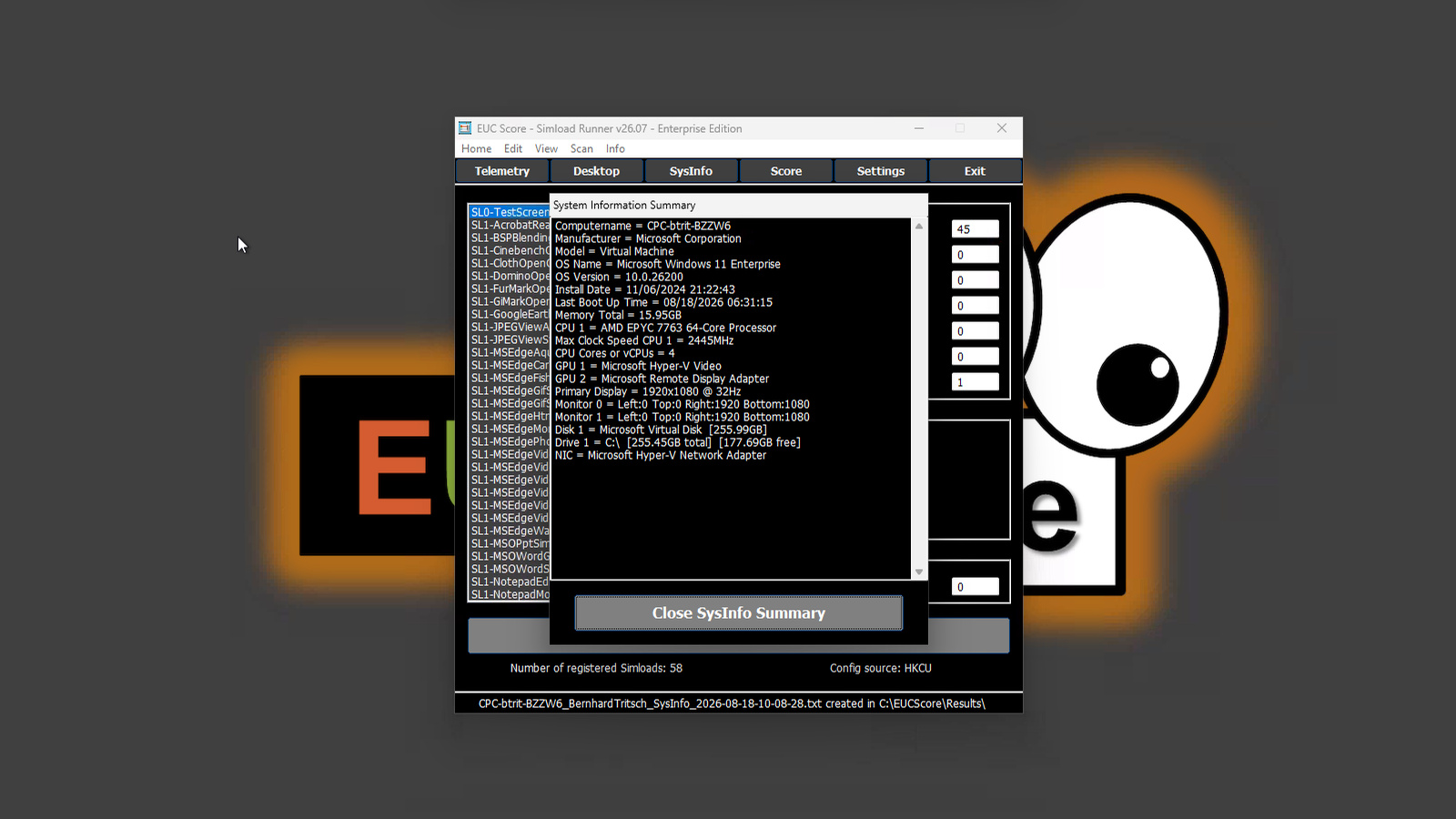
EUC Score saves extensive system information to a text file either when running the SL0-TestScreen Simload or when pressing the SysInfo button in the Simload Runner. The primary source of this system information is the Common Information Model (CIM), Windows Management Instrumentation (WMI) and other native Windows APIs. These interfaces provide direct access to operating system and hardware configuration data that is maintained by the platform itself.
EUC Score allows information to be collected from a wide range of system components, including:
For a more in-depth analysis of the target systems, I have added the menu item "Scan | Inventory" to the enterprise edition of Simload Runner, starting with version 26.07. When you select this menu item, the following additional information is collected and saved in multiple text or CSV files:
The system information and the inventory data become an integral part of the benchmarking record, allowing IT teams to understand not only the score itself, but also the environment that produced it. If you would like to try out the SysInfo feature yourself, simply download the freeware version of the EUC Score Toolset. If you would also like to activate the inventory function, get in touch with me using a business email address and I will send you a temporary license key.