 Benny Tritsch
28 Feb 2026
Benny Tritsch
28 Feb 2026
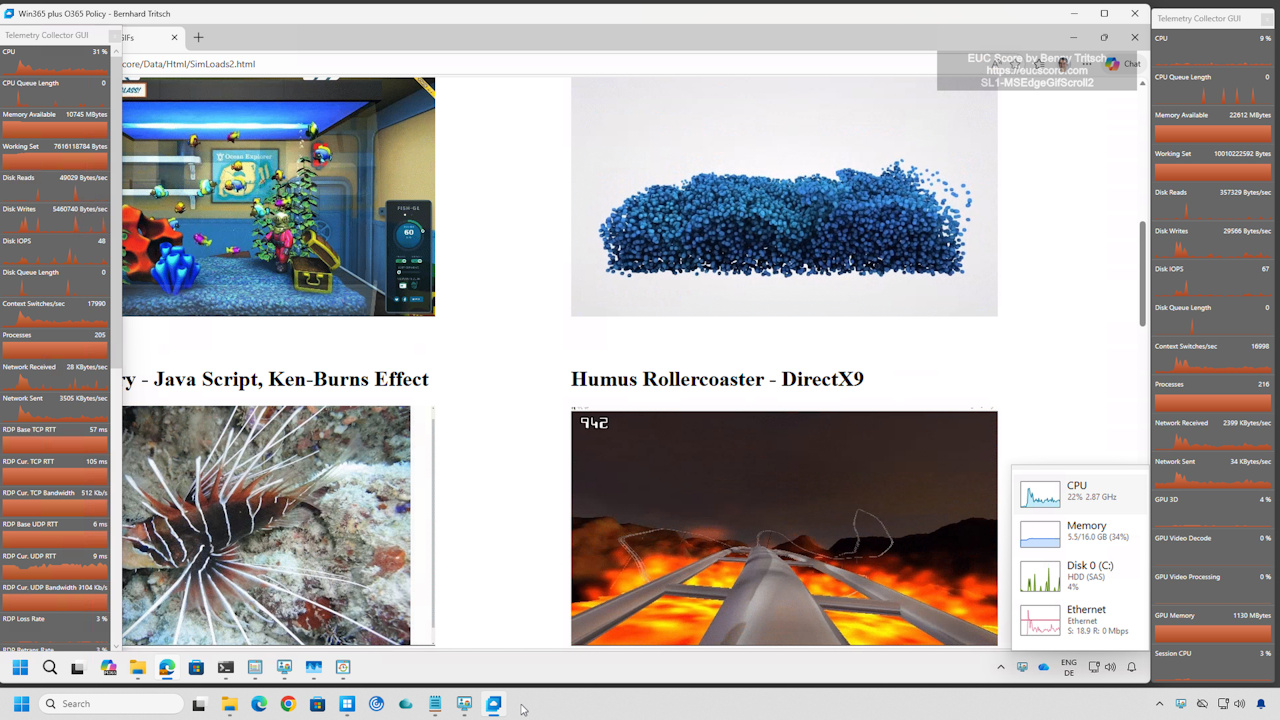
Over the past few weeks, my Scottish colleague Alyn Peden from Auxilium IT and I have been conducting benchmarking tests in multi-user Azure Virtual Desktop (AVD) environments. When setting up the sessions for the so-called "noisy neighbors," we had to ensure that the content was displayed at the correct resolution on a physical endpoint. There are good reasons for this, which are the subject of this article, as they are not even known to every End User Computing (EUC) expert.
An important aspect of RDP is that the amount of data it sends is not constant. RDP dynamically adjusts how much screen data is transmitted based on the resolution of the RDP client window, the scale factor, the visual activity on screen, and whether the RDP client window is minimized. When the RDP session runs in full-screen mode on the endpoint device, RDP must deliver all "regions of interest" at the endpoint display's full resolution. The math behind network bandwidth requirements is fairly simple: More pixels mean more data, faster user interface changes cause more frequent updates, and video playback or animations multiply bandwidth usage. RDP's codecs, such as H.264/AVC444, AVC420, or RemoteFX-like modes, compress aggressively. However, they cannot perform miracles.
Shrinking the RDP client window to one quarter of its size (half width x half height) reduces the pixel count by 75%. In addition, it reduces the encoded frame size and the region-of-interest volume. Even temporarily covering the RDP client window with the window of another application can lead to changes in the region-of-interest volume. RDP adapts instantly, there is no special setting. The protocol simply encodes fewer pixels. This results in a lower need for network bandwidth and in some cases also in lower CPU or GPU resource requirements. So far, everything should be common knowledge to many people familiar with EUC technologies.
Now, here comes the part that surprises many EUC experts and IT administrators: When the RDP client window is minimized, RDP stops sending screen updates almost entirely. The means that the RDP-specific network consumption goes down to almost zero. Since the endpoint device cannot display the content, RDP pauses graphical updates, transmits only small control packets, and drops video/graphics encoding to zero. The RDP design is built on the concept of "only send what is visible to the client". The session continues running normally on the host and most applications keep rendering and processing. The RDP client simply receives nothing because it has nothing to display. When minimized, RDP clients commonly disconnect the remote display buffer and reconnect it on restore.
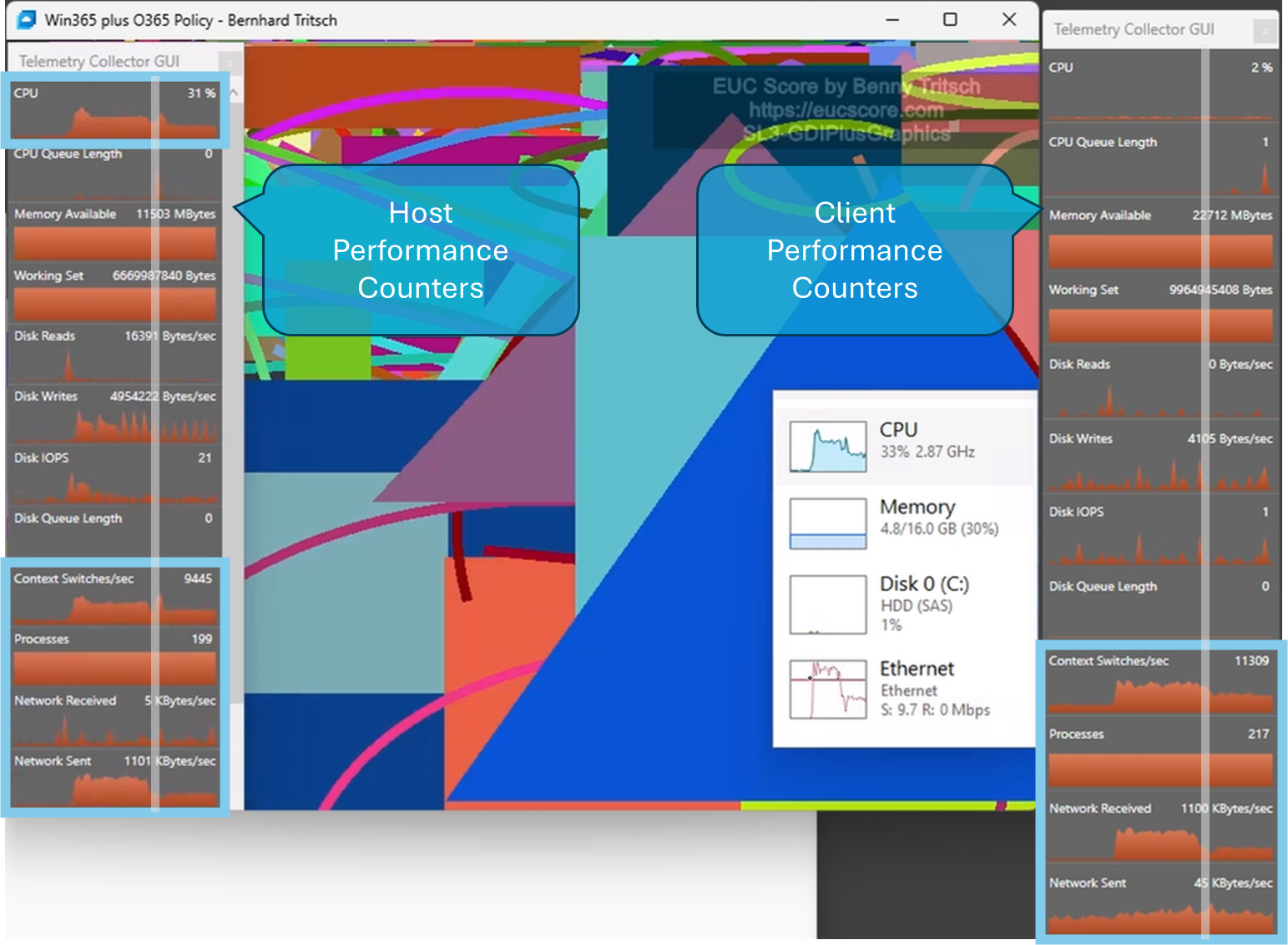
A simple test with a Windows 365 session confirms the different resource loads at different screen resolutions. The image below shows CPU load, context switches and network consumption at a low screen resolution in light blue rectangles. On the left are the telemetry data charts from the host system, and on the right, those from the client device. The vertical gray line marks the point at which a higher screen resolution of the RDP session was manually changed to a lower one on the client. The reduction in resource requirements from high to low screen resolution is clearly noticeable.
All of this must be taken into account when planning a multi-user benchmarking test with EUC Score. The associated methodology is to measure the perceived user experience in a primary user session while a predefined number of secondary user sessions ("noisy neighbors") generate a continuous load on the shared host and network resources.
If you want to open four, eight, twelve, or even more secondary sessions and run a synthetic workload in them, it makes a big difference whether the session is displayed in full resolution or not. However, a separate endpoint device with a monitor is usually not available for each secondary session. In this case, you can connect to multiple sessions from a sufficiently powerful endpoint device if the RDP client software has a zoom function. The screen resolution remains unchanged.
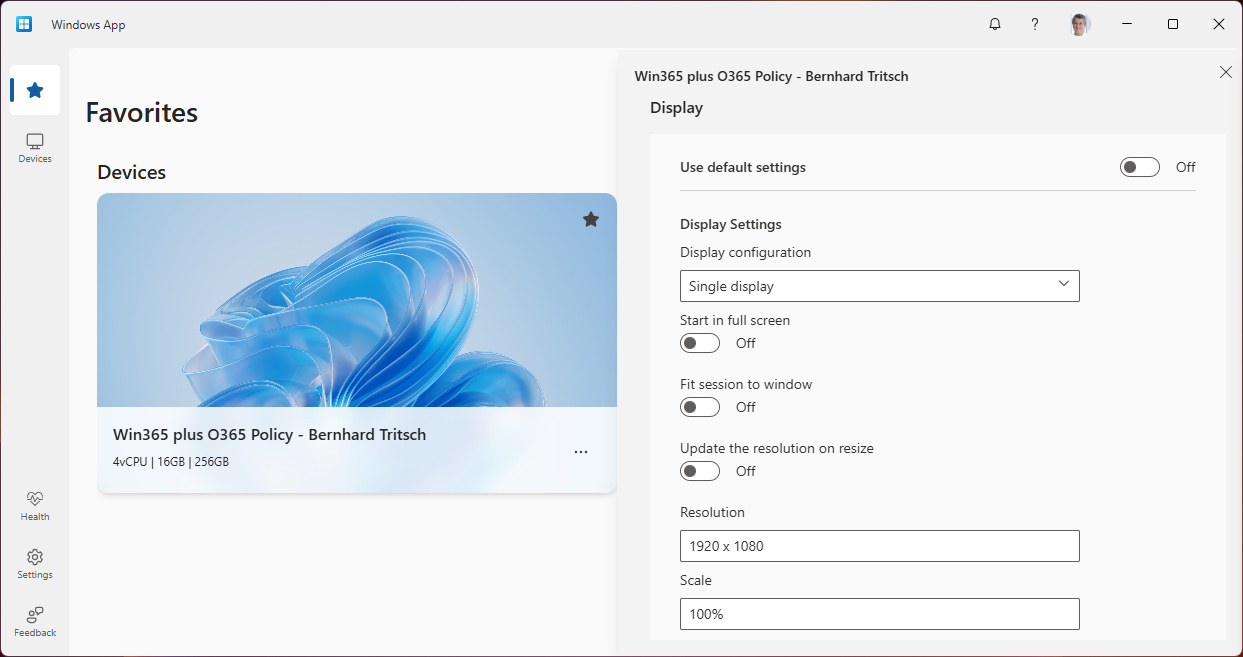
The following image shows the configuration of the Windows App to connect to a Windows 365 or Azure Virtual Desktop session at a pre-defined resolution.
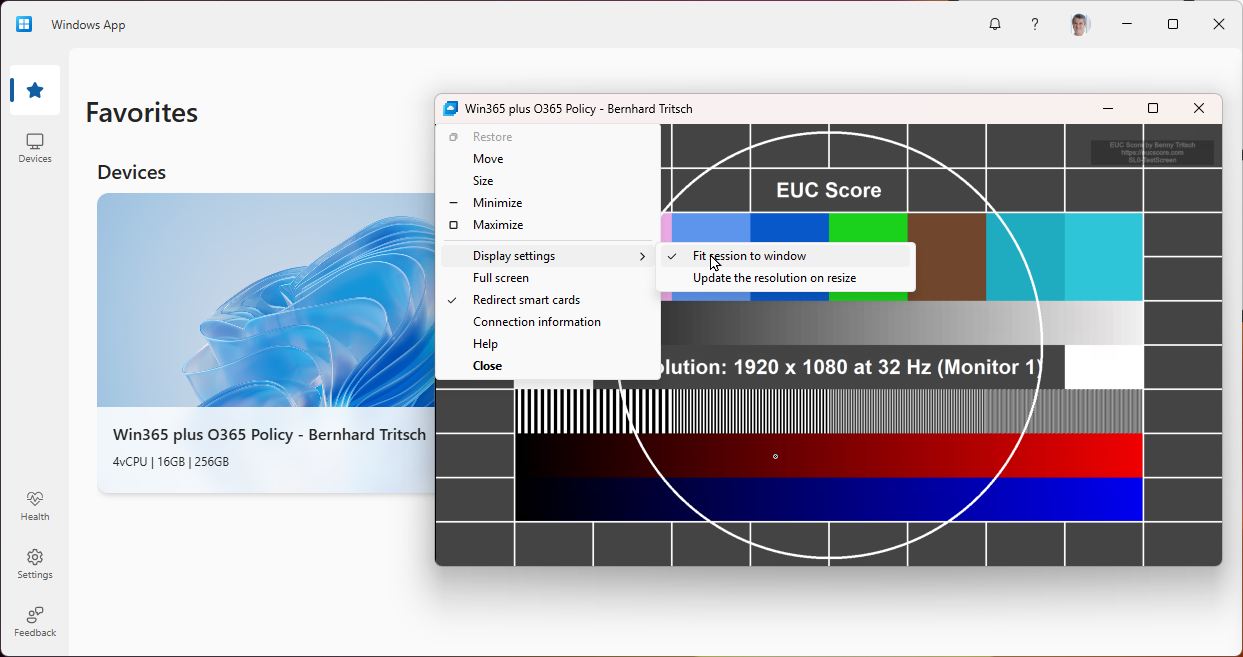
Once the connection to the remote session has been established, the screen setting of the local Windows app can be set to "Fit session to window". This ensures that when the window size is changed, the screen resolution of the remote session is maintained. This is precisely the zoom function needed to display multiple such connections side-by-side while preserving the original resolution. The image below shows the display settings and also a small Windows App session window with a zoomed-in view of a full HD screen.
SysInternals Remote Desktop Connection Manager (RDCM) offers identical functionality for classic RDP connections. Active remote sessions can be displayed as thumbnails while maintaining the original screen resolution. The image below shows RDCM with four noisy neighbor sessions.
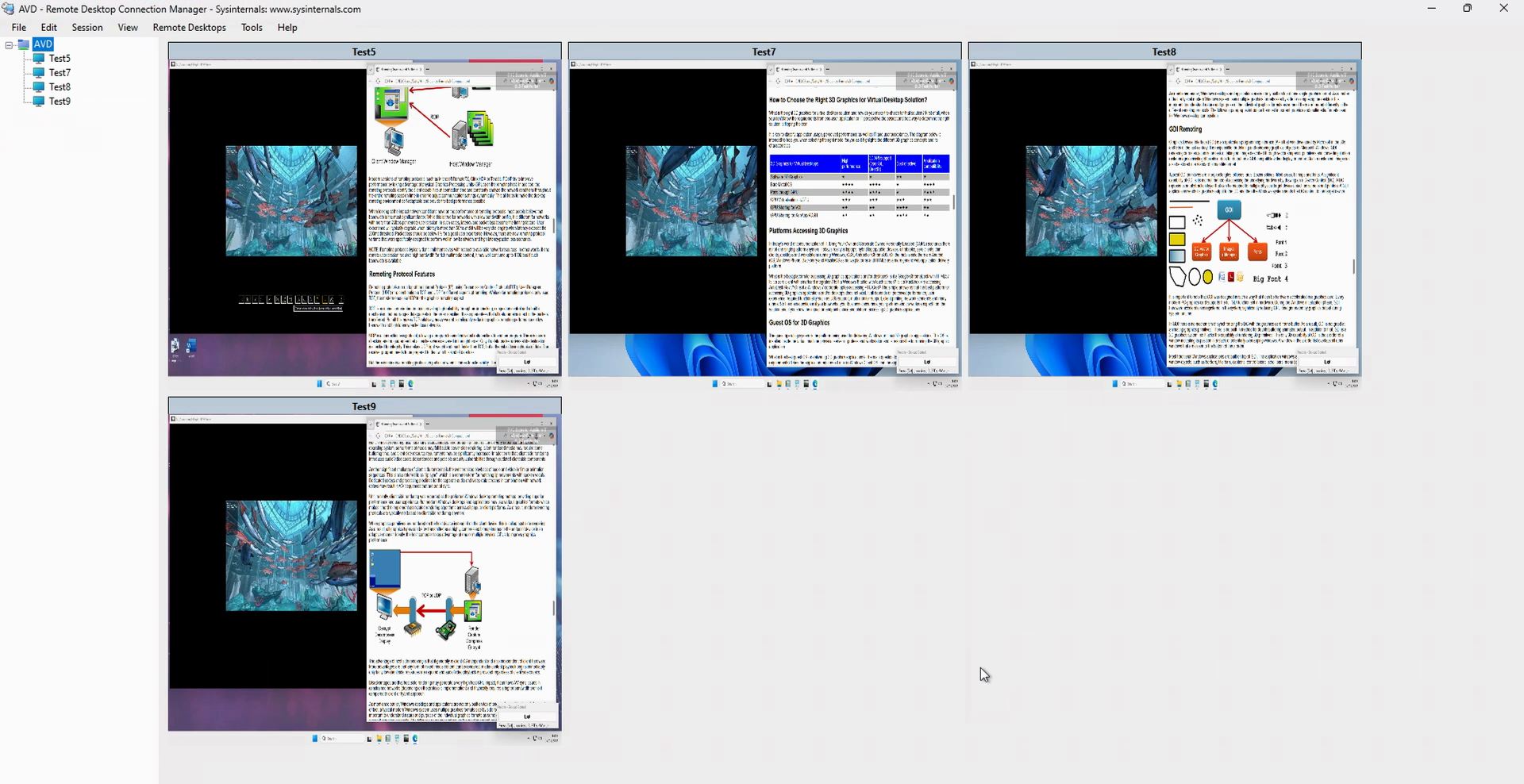
NOTE: RDCM can also be used in AVD environments. In this scenario, the Windows app establishes a connection to an AVD session. From there, RDCM connects to multiple sessions on another AVD host located in the same VLAN. This double-hop setup allows multiple zoomed-in AVD sessions to be displayed on the client screen.